Drivers and other Software
vp_eye30.zip
- Version : N/A
- Filesize: 133,37 MB
- Language: en / de
- Operating system: Win 98 / Win ME / Win 2000 / Win XP (32-Bit)
- Description: Software
sl-6820_2.zip
- Version : 23.02.2007
- Filesize: 8,49 MB
- Language: en
- Operating system: Win 98 / Win ME / Win 2000 / Win XP (32-Bit) / Win XP (64-Bit) / Win Vista (32-Bit) / Win Vista (64-Bit)
- Description: Driver and Application.
vsnpstd3.zip
- Version : N/A
- Filesize: 0,09 MB
- Language: en
- Operating system: Win 98 / Win ME / Win 2000 / Win XP (32-Bit)
- Description: Missing File, please read the FAQ.
Manuals
sl-6820_manual_vers2_curves.pdf
- Filesize: 3,90 MB
- Description: User Manual.
Frequently Asked Questions
How do I turn off the webcam´s LEDs? Even though the PC is shut down, the webcam’s LEDs are still lit up.
Many USB ports continue to be powered even if the PC is shut down which is why the webcam’s LEDs stay on. To prevent this, you can either disable USB power after shut down in your computer’s settings or completely switch the PC off such as at the mains.
The LEDs of this webcam are controlled by a photocell and cannot be switched off manually. The lighting is switched on automatically, when the lighting conditions deteriorate. In addition, many USB ports are supplied with power, even when the PC is turned off - if this is the case, the LEDs of the camera glow after the PC has been shut down.
Many USB ports continue to be powered even if the PC is shut down which is why the webcam’s LEDs stay on. To prevent this, you can either disable USB power after shut down in your computer’s settings or completely switch the PC off such as at the mains.
The LEDs of this webcam are controlled by a photocell and cannot be switched off manually. The lighting is switched on automatically, when the lighting conditions deteriorate. In addition, many USB ports are supplied with power, even when the PC is turned off - if this is the case, the LEDs of the camera glow after the PC has been shut down.
My webcam picture is upside down.
Open AmCap and then the Video Capture Filter. Remove the check from "Image Flip".
Can the lighting of the Webcam SL-6810 and SL-6820 be switched off?
The lighting of the Webcams can not be switched off. As a solution disconnect the USB Cable.
My USB device is not detected under Windows®XP or does not function properly.
Please install Microsoft´s USB patch KB822603, this should solve the problems with USB devices.
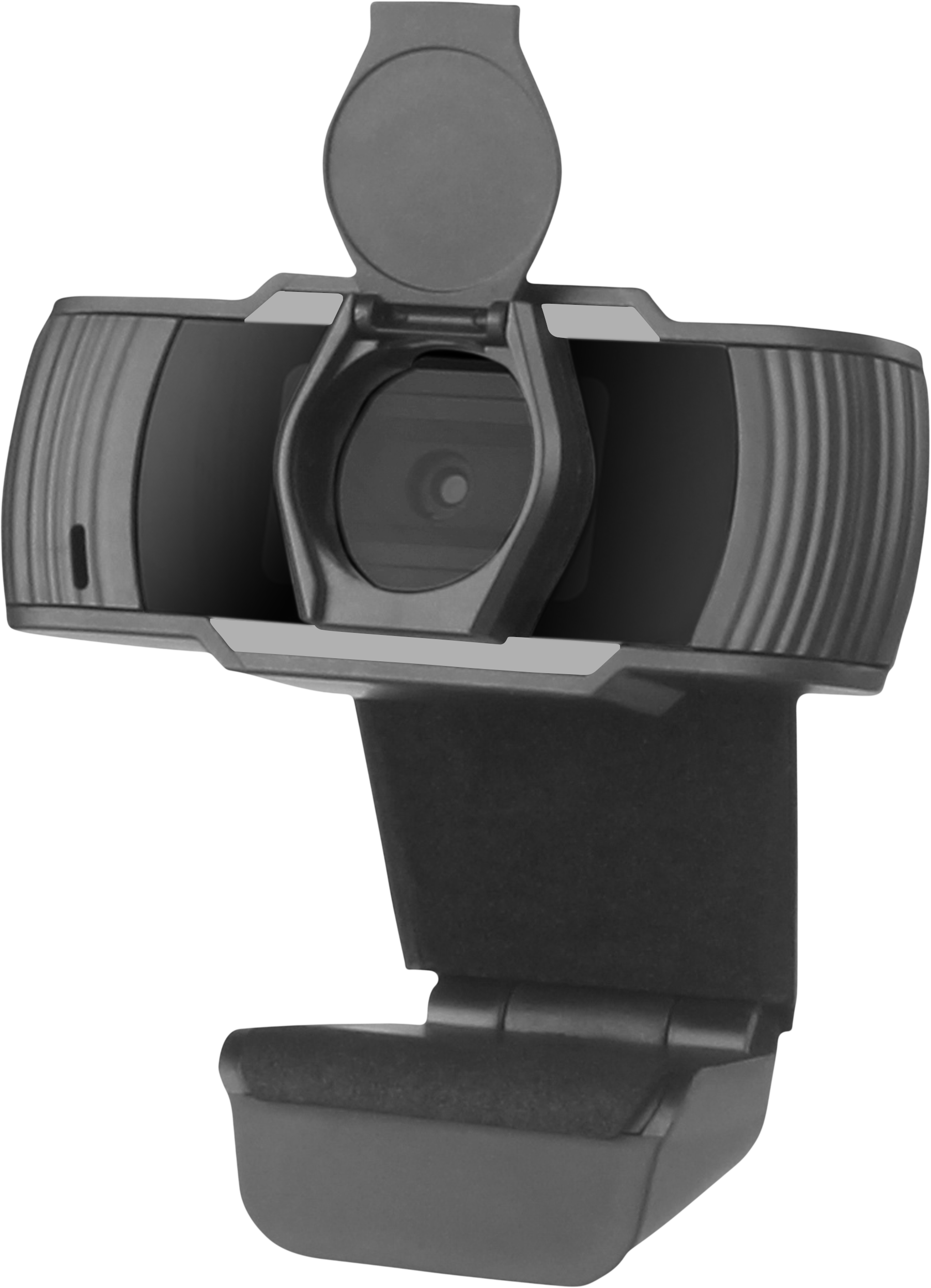
My Webcam SL-6820 shows a black Window.
Start the software Amcam. The top bar contains Device, click it and select the USB Cam 168.
If the Window continues to stay black, please check whether the protective cap before the lens was removed.
Start the software Amcam. The top bar contains Device, click it and select the USB Cam 168.
If the Window continues to stay black, please check whether the protective cap before the lens was removed.
My Drivers from my new Product, Gamepad, Wheel ,Joystick, Headset, USB Soundcard or Webcam will not be installed.
Please exit your Virus scan Programm, install then the Driver. After installing the Driver activate your Virus scanner.
When installing the USB webcam SL-6820, the file vsnpstd3.exe can not be found.
This is a Windows® file, which should be found under C:Windows/System32/Drivers. If the File can not be found here, let the Windows® search detect the File and the path where it can be found. Memorize or write down the path to the destination (the folder) of the file. You must now manually inform Windows® about the destination of the file.
If the file does not exist, you may download it here. Extract the zip file and copy it in the destination folder mentioned above. Finally, you run the driver installation again.
This is a Windows® file, which should be found under C:Windows/System32/Drivers. If the File can not be found here, let the Windows® search detect the File and the path where it can be found. Memorize or write down the path to the destination (the folder) of the file. You must now manually inform Windows® about the destination of the file.
If the file does not exist, you may download it here. Extract the zip file and copy it in the destination folder mentioned above. Finally, you run the driver installation again.